Macros
Macro Overview
RPvdsEx includes very powerful macro functionality. Macros replace common circuit constructs and provide an interface for changing circuit parameters. The underlying macro creation tools are intended primarily for TDT use, with end users simply inserting existing macros into their circuit. TDT has developed a core set of macros and will continue to add to the macro library over time. Using macros reduces the complexity of configuration at the circuit level, reducing the number of properties that must be set in each functional block.

In the example below, large functional blocks of components designed to bandpass filter neural data and to detect, sort, and store neural spikes are replaced by incorporating a set of easy-to-use Macro components.
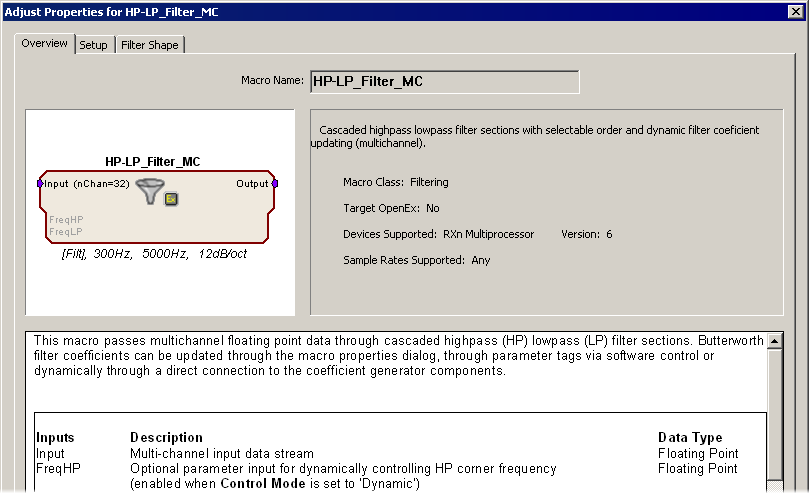
Setting parameters for each construct is accomplished at the Macro level. Macros are added to a circuit much like other components and their properties can be configured in each Macro's properties dialog box. Just double-click the macro component in the RPvdsEx workspace to open the dialog. Variables set here propagate through each of the basic components comprising the Macro, ensuring correspondence throughout the entire processing block. Help for each Macro component is also provided in the properties dialog box.
Using macros greatly simplifies the process of modifying the underlying circuits used in complex circuits (such as those used in OpenEx projects).
Making common changes, such as controlling time stamping, sampling rate, and storage properties, requires fewer steps and less intimate knowledge of the details of the circuit structure than designing circuits without macros.
See Multi-Channel Circuit Design Strategies, for examples of how macros can be used to simplify multi-channel circuit design.
Adding Macros
Macro components are placed in a circuit and linked in a manner similar to that used for traditional RPvdsEx components. They can be added to processing chains using the Insert RPvds Macro Symbol dialog box, which can be opened using any of the following:
- The
 Insert Macro icon in the RPvdsEx Components toolbar
- The Circuit Macros command on the Components menu
- The Open Macro Design command on the File menu
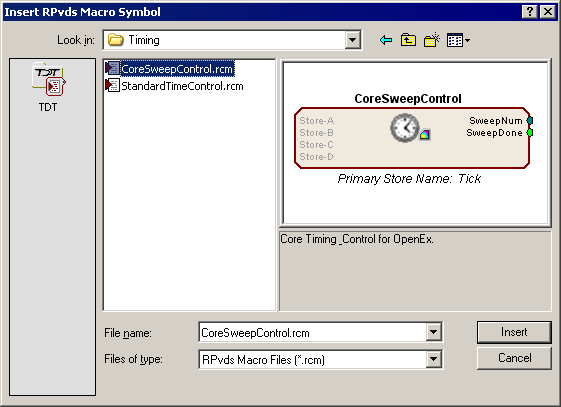
The macro chooser dialog allows the user to browse for existing macros and shows a graphical representation of any selected macro component with a brief description. Graphical symbols on the macro icon help to quickly identify the type of macro, whether it is designed for use in OpenEx, and whether it requires the use of high performance devices (RX or RZ).
Macros are a special type of circuit file and are stored at the following path:
TDT|RPvdsEx|Macros
Keeping all macros in this directory ensures they can easily be found when the Insert RPvds Macro Symbol dialog opens.
Note
The macro chooser dialog is not available when editing a macro circuit. Making a macro out of macros is not supported.
Identifying Symbols
A macro belonging to a particular group (e.g. Timing, Filtering, Control) will have an identifying graphic included as part of the macro icon. Further graphics identify if a macro is to be used exclusively with OpenEx or only with a multi-processor device (RX or RZ). The following list shows the graphics used for some common macro groups.
 Timing
 Data Storing
 Filtering
 Hardware Control
 Calculators
 Input-Output
 OpenEx
 High Performance Processors (RX or RZ)
 OpenEx and High Performance Processors (RX or RZ)
Working with Macros
The symbols above can be helpful in selecting macros and debugging circuits. Macro icons also feature color coded inputs and outputs like other components. Other helpful features include a tabbed setup dialog with internal documentation, parameter enabled inputs, and parameter summaries.
To open the macro setup dialog:
- Double-click the macro or right-click the macro and click Property on the shortcut menu.
Parameter Enabled Inputs
Some macros have inputs that do not appear to be active (grayed out). These inputs are enabled or disabled based on the macro parameter settings. This feature prevents accidental connections to ports that would not be connected at compile time based on the macro settings. For example, the filtering macros have conditional inputs named FreqHP and FreqLP. These inputs are only enabled if the macro is set up to provide Dynamic control of the filter corner frequencies.
Parameter Summaries
Most macros include an informative text bar across the bottom of the macro to view parameters at a glance. When referring to the HP-LP_Filter_1Ch macro, for example, the text bar shows the filter updating mode, the LP and HP corner frequencies and the filter roll off.
OpenEx Macros
Macros designed for use with OpenEx are added to circuits in much the same way as other macros and offer the same easy-to-use parameter settings dialog box. These special macros generate information that is saved together in the compiled circuit file and then used by OpenEx to auto-configure some aspects of the OpenEx experiment.
All circuits developed using macros and intended for use with OpenEx must include one and only one CoreSweepControl macro. This macro supplies required tags and signal lines used by other macros, such as the data storing macros.
OpenEx users, see the Getting Started Tutorial in the OpenEx Manual for more information on using macros to design circuits for OpenEx.