USB Device Connection Issues
Tech Note: TN2603
Product: UZ3, iConZ, iConQZ
Version: All
Date Added: 2026-08-12
Issue
TDT USB3 Device is not detected, found, or unable to be accessed in zBusMon or Synapse
Solution
TDT processors with USB-based communication (UZ3, iConZ, iConQZ, RZ-U) may experience issues establishing a connection to your Windows 11 PC. These troubleshooting steps will help you isolate the problem and resove the issue.
Check zBusMon
First, close Synapse and open the TDT application zBusMon.
Confirm that the installed drivers are USB 3 by checking the top of the zBus Monitor window. It should say 'zBus Monitor via USB 3 Interface' at the top.
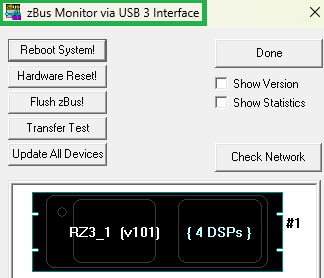
Verify that your TDT processor cannot be found. This will appear in one of two ways:
NO DEVICES FOUND
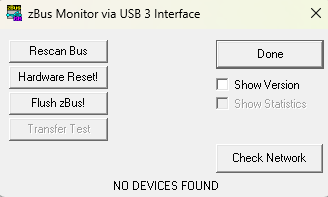
or
Unable to access device on USB 3 bus
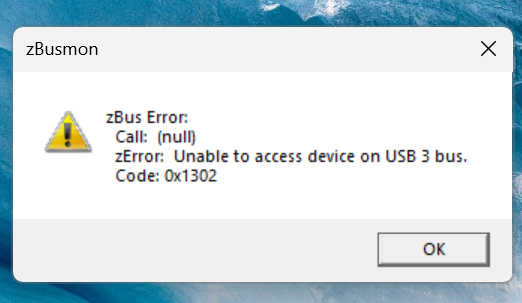
Go to the troubleshooting steps outlined for your specific error below.
zBus Monitor: NO DEVICES FOUND
This error likely implies a USB port or cable issue.
First, verify that your TDT-supplied USB cable is plugged into a USB3 port on your PC or laptop. This will have a blue connector and/or say 'SS' on it if it is USB-A. If you are using a USB-C connector then it is default USB 3.0+ already.
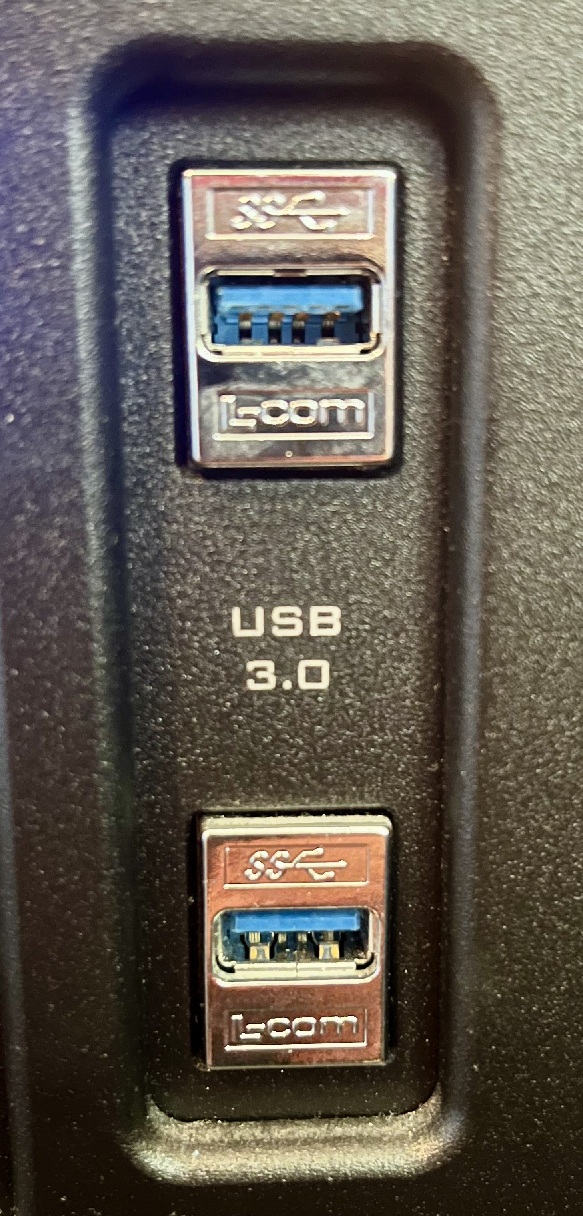
Remove the TDT USB cable from both the PC and TDT processor and do the following steps. After each step, close zBusMon, reconnect your USB cable, then reopen or rescan within zBusMon to check for a connection:
-
Check for debris in your USB cable or USB ports. This is especially problematic with USB-C connectors, which are much smaller and can trap dust and dirt. Always turn off electronics before attempting to remove debris from them.
-
Try the USB cable on multiple different PC USB3 or USB-C ports.
-
Try a different USB C-C or A-C cable between the TDT processor and the PC.
-
If you have a USB-C cable, try rotating the connector head 180 degrees.
-
Confirm that a different USB3 device functions on the same USB port on your PC. Keyboards and computer mice are often USB2 devices. Look for the blue connector if using a USB-A port. If you cannot get another known good device to work on your computer, then cross check with another PC to confirm functionality and check that your computer's external USB are enabled in the BIOS.
zBus Monitor: Unable to access device on USB 3 bus
This implies a driver issue preventing communication between your Windows computer and the TDT device. This will appear in one of two ways - your PC sees the TDT device as an FTDI FT601 or as a USB Composite Device.
Go to your Windows Device Manager and look for Universial Serial Bus Controllers > FTDI FT601 USB 3.0 Bridge Device
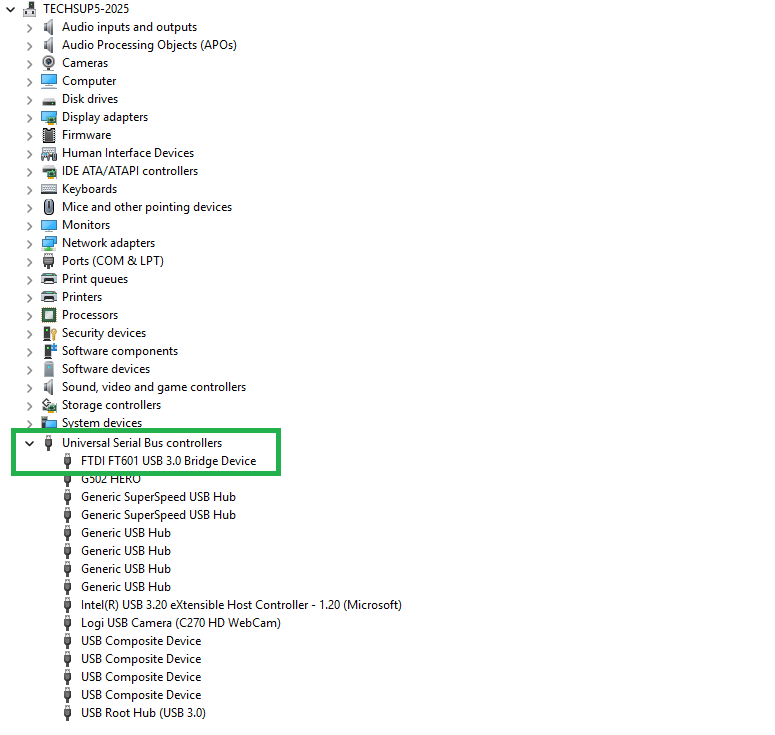
If you see that device, unplug the TDT USB cable and confirm it disappears. Replug to confirm it reappears. This will verify that it is the TDT USB device of interest. If you don't, proceed to the USB Composite Device section.
FTDI FT601
The presence of the FTDI Bridge Device in Device Manager with the zBus Error usually implies that Windows is using the wrong version of FTDI drivers for TDT needs or cannot find the TDT specific drivers folder.
Right-click on the FTDI FT601 device and go to Properties > Driver. The FTDI driver version TDT uses should be 1.3.0.10
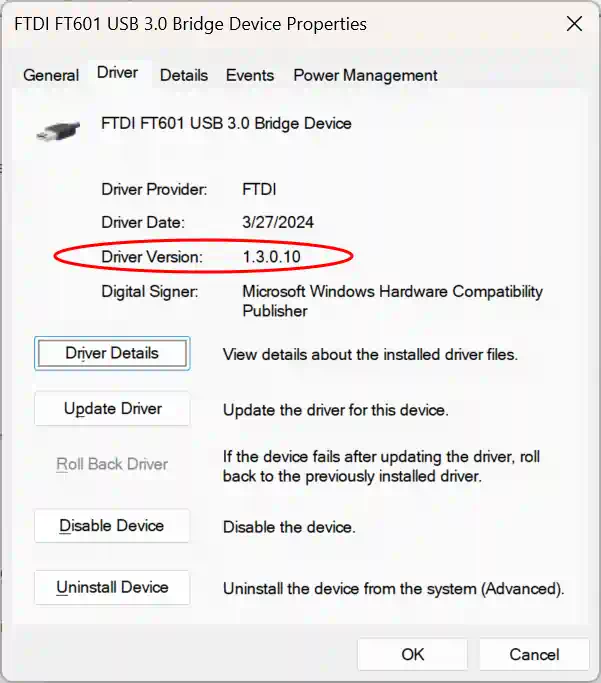
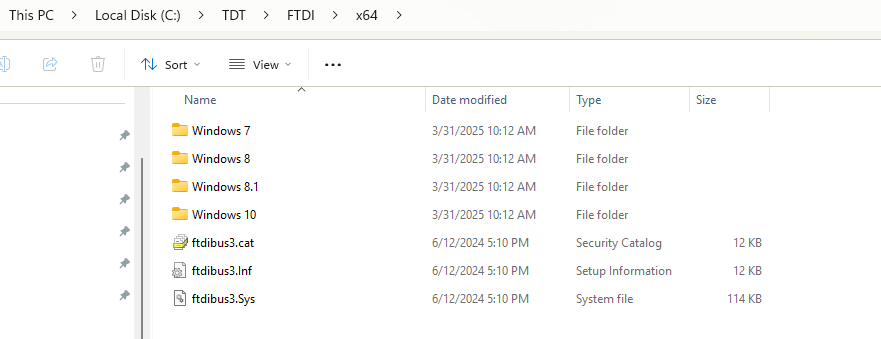
If this is not the case, close the Properties Window then right-click again on the FTDI device > Update Driver > Browse My Computer for Drivers > point it to C:/TDT with subfolders
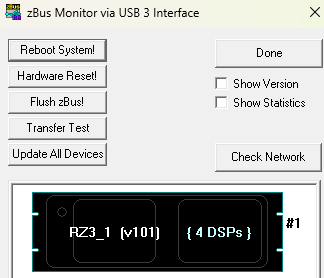
Close zBusMon, reopen and verify device connection. Your TDT device may be different than an RZ3, but it will appear in a box at the bottom of zBus. Do a 'Transfer Test' as needed. If the text is red, then be sure to perform a microcode update (see How to Update).
USB Composite Device
Go to Device Manager and look to see if your TDT USB3 device is associated with a USB Composite Device when you unplug/replug the TDT device into a USB port. You will see the USB Composite Device disappear/reappear when you unplug and replug the cable to the iCon
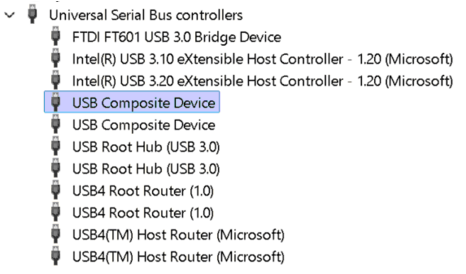
Widows will not let you right click and point the drivers to C:/TDT/FTDI. It will assume it has the best drivers and stay rogue.
We need to find the Child Interface for this USB Composite Device
At the top of Device Manager go to View > Devices By Container
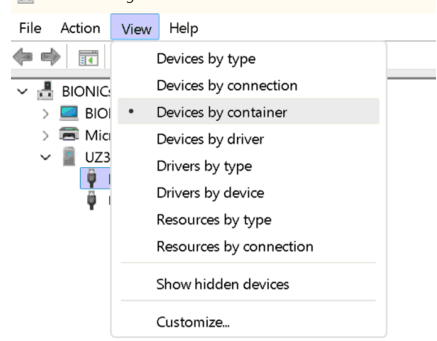
Find the TDT USB device in the list. It may be listed under USB Composite Device or Universal Serial Bus controllers
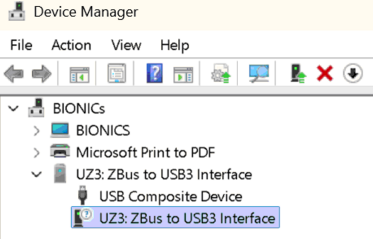
Right click on your device then point it to C:/TDT with subfolders
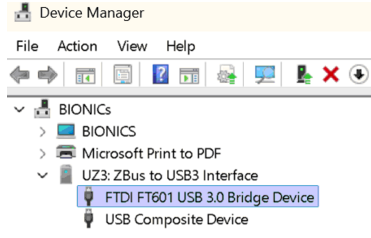
The device should update to FTDI FT601. Close zBusMon, reopen and verify device connection. Your TDT device may be different than an RZ3, but it will appear in a box at the bottom of zBus. Do a 'Transfer Test' as needed. If the text is red, then be sure to perform a microcode update (see How to Update).