Setting Up an iCon over USB
Please carefully unbox your equipment. iConZ devices connect directly to a USB 3.0 port on your PC or laptop. They have two built-in DSPs and operate as stand-alone devices. You can connect one iConZ to your PC or laptop at a time.
Running several iConZ devices at once
To drive multiple iConZ devices from one machine, use an iPac, a workstation with a node per iConZ. See Setting Up with an iPac.
Install the Software
If you have a TDT WS4 or WS8 workstation, then TDT Drivers and Synapse software are already installed. If you are using your own PC or laptop, install the TDT drivers and Synapse software from the USB storage drive that was provided with your shipment.
During TDT Drivers installation, select the System 3 USB 3 interface as default option.
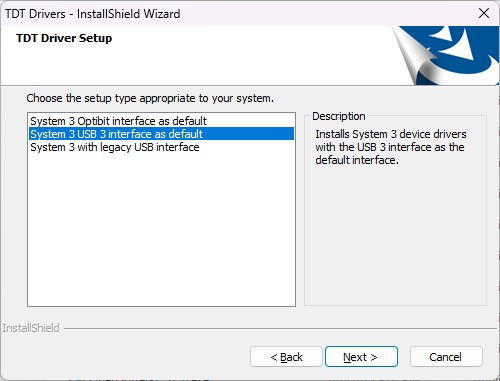
See Install the TDT Drivers for the full walkthrough.
Connect the iConZ
Once the TDT drivers and software are installed, you are ready to connect the iConZ and PC together. Connect the iConZ to a USB 3.0 port on your PC with the provided cable.
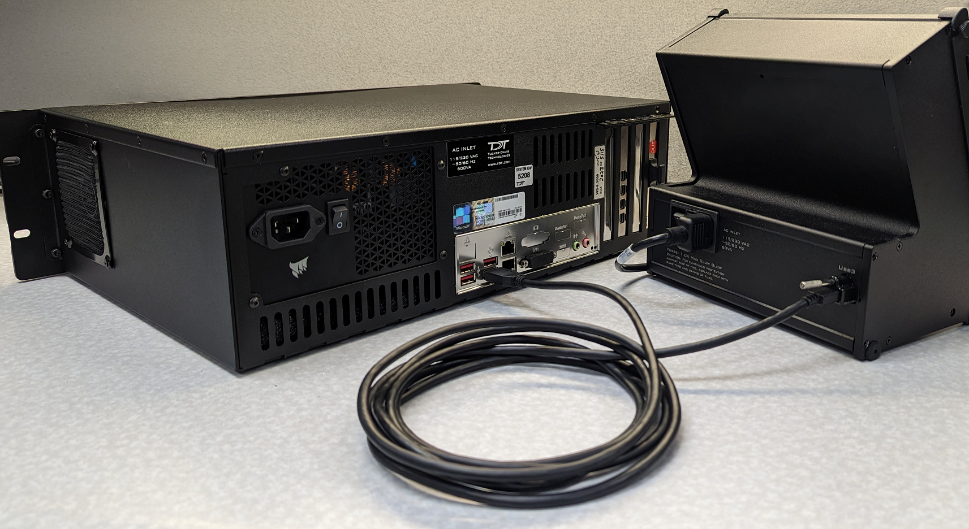
Cable length
The maximum USB 3 cable length is 3 meters total. Most PC front panel USB connectors have additional cable length inside to the motherboard, so use a maximum 2.5 meter cable if connecting to the front panel USB connectors. Otherwise use the back panel USB 3 connectors.
Test iConZ Processor Communication
Turn the iConZ on. The status LED will light green when it is properly connected to the computer. To check whether there is communication between the iConZ and the PC, open the zBUSmon application from the desktop (shown below). The iConZ processors will appear as an RZ3 device, with information about the driver version and number of DSP cards.
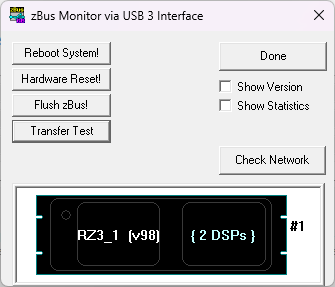
zBUSmon with iConZ Processor
If you get the "Unable to access device on USB 3" error below, close zBUSmon, check the USB cable connection, power cycle the iConZ, and try again.
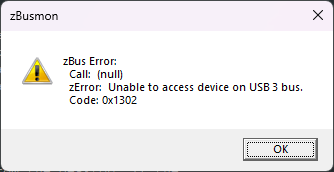
Click Transfer Test to test communication. If you get an error, click Reboot System! and try again. If there is a consistent error in zBUSmon, reconnect the interface cable on the iConZ and try again. If you continue to have errors or do not see your iConZ appear, please contact TDT for assistance.
Launch Synapse with iConZ
With your iConZ turned on and connected, launch Synapse from the desktop. If the Licensing Dialog appears, follow the instructions to send a licensing request to TDT. Synapse runs for 30 days before requiring a license key.
The Rig Editor will then appear, but it will be blank.
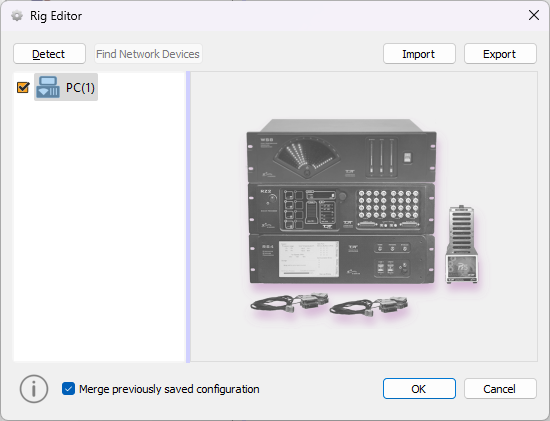
Click Detect for Synapse to recognize your iConZ. The RZ3, two DSPs, and iCon will show up in the tree:
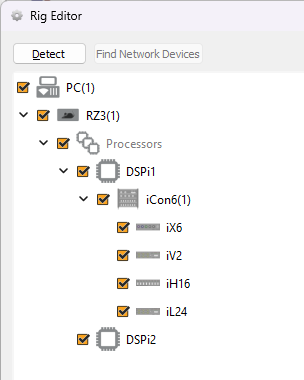
Finally, click OK to exit the Rig Editor.
The Rig Editor may be accessed later for modification through the Synapse Menu if your hardware changes, for example to add modules to your iConZ.
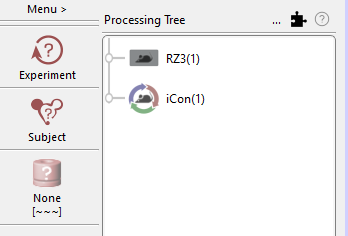
Upon exiting the Rig Editor, your processor and any peripheral equipment declared in the Rig Editor will appear in the Processing Tree.
Next Steps
- Test Your System: more detail on what zBUSmon shows you.
- After Setting Up Your System: documentation, warranty, and where to get more help.