Install the TDT Drivers
The TDT Drivers are required for all programmable devices under computer control. They are supplied on the USB storage drive that ships with your system, and may also be downloaded from our website.
TDT workstations are already done
If you have a TDT WS4 or WS8 computer workstation, or an iPac, the drivers and TDT software are already installed at the factory. Skip this page and go to Setting Up with a TDT Workstation or Setting Up with an iPac.
Install the drivers before connecting any hardware
The interface type must be selected during driver installation, and TDT Drivers must be installed before connecting any TDT hardware to your PC.
Check System Requirements
Operating system. TDT Software and the Optibit and USB interfaces require Windows 11.
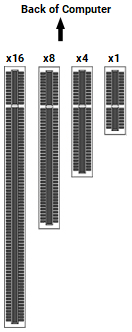
Expansion slots. The PO5e and PO5c Optibit PCI express interface cards must be installed in a PCI Express slot. The PO5e and PO5c cards use a single lane (x1) but may be used in any PCIe slot size (x1, x4, x8 or x16).
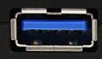
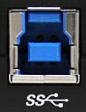
USB. The UZ3 USB 3.0 Optibit Interface requires a USB 3.0 compatible port on your laptop or computer.
Run the Installer
-
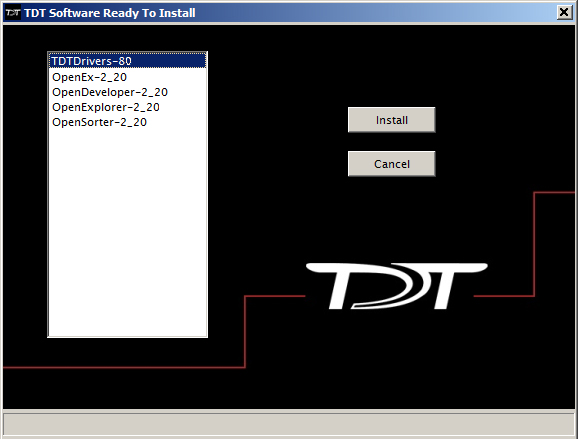
Insert the TDT USB storage drive into a USB port on your computer. The installer will start automatically. If it does not, open the drive in File Explorer and run the installer from there.
-
Click TDTDrivers in the software list, then click Install to run the TDT Driver and RPvdsEx installation.
If you are prompted to answer a security question such as "do you want to allow the following program to make changes to this computer", click Yes. The InstallShield Wizard opens and will guide you through the installation.
-
On the version information page, click Next.
- On the welcome page, click Next. The TDT Driver Setup page is displayed.
-
Click to choose one of the following setup types:
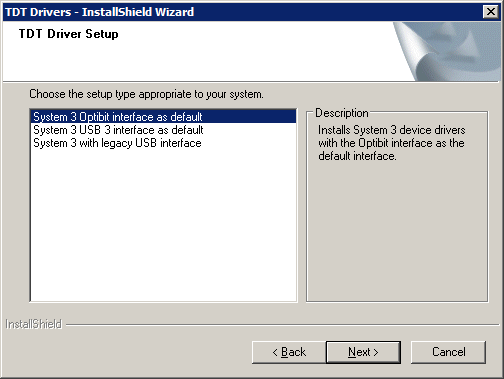
-
Click Next.
-
Click Install. If you are asked whether you would like to install the device software, click Install.
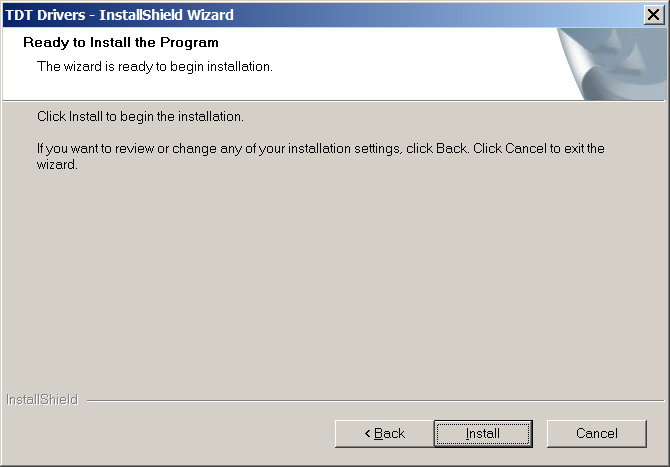
-
Click OK.
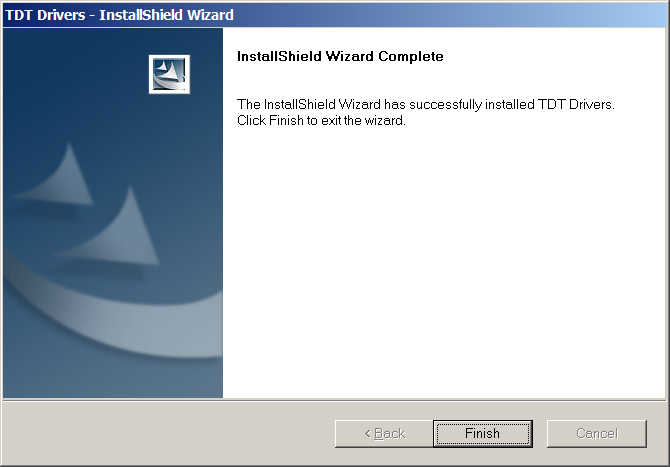
-
Click Finish.
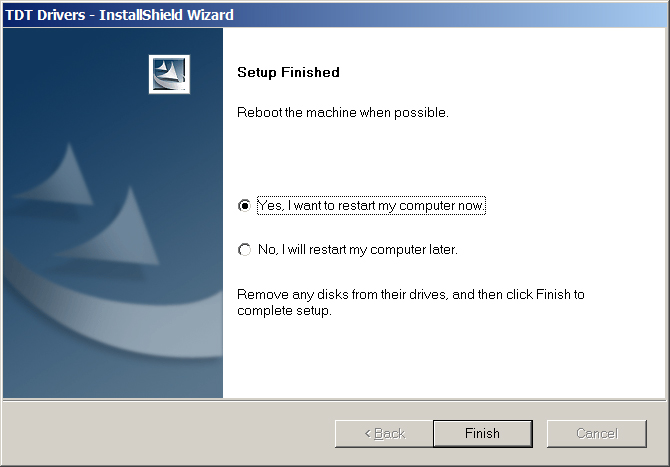
-
To restart the computer and complete the driver installation, select the Yes option and click Finish.
After the TDT Drivers have been installed, the system interface and hardware should be set up and tested. After you have installed your hardware you can return to the USB storage drive and install any other software included with your system.
Next Steps
Go to the page for your interface: