Processing Multiple Data Sets
This section details techniques for batch processing and concatenating data.
Batch Process Multiple Blocks
OpenSorter's batch processing mode minimizes the time and effort required to sort multiple sets of data. Batch processing can be performed in fully or semi-automatic modes. Fully automatic batch processing is fastest and provides a means to calculate statistics for multiple data sets. Here, the algorithm properties specified in the Settings panel are used to automatically sort all selected data sets without displaying the results or requiring any further user input. Semi-automatic batch processing sequentially steps through each of the selected data sets and allows the user to sort, view, and edit results for each data set before proceeding to the next.
Note
Automatic batch processing supports tank filtering. Filtering may also be used during semi-automatic batch processing after each data set has been sorted and before iterating the batch process to the next data set. See Tank Filtering for more information.
To batch sort data, perform the following steps:
-
Click Set-up Batch Process from the Batch Processing option in the Sort menu or click the
 Batch Sort button to open the Batch Options dialog.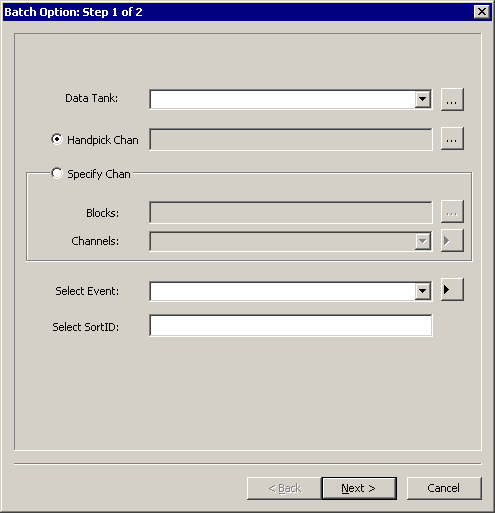
-
To select the data tank, click the drop-down box and select the desired tank or click the ellipsis (...) next to the Data Tank field, then select the desired tank in the Find Tank dialog.
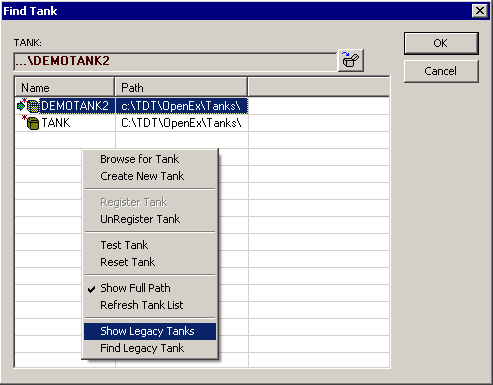
By default the Find Tank dialog displays registered tanks in the current tank format. The shortcut menu (right-click) provides tools to locate additional tanks.
Show Legacy Tanks: view legacy tanks (tanks generated in versions prior to v2.0).
Browse for Tank: locate unregistered tanks in the current tank format.
Find Legacy Tanks: locate unregistered legacy tanks.
After the tank is selected, the tank name appears in the Data Tank field.
-
Next you must select the data sets of interest.
-
To specify a fixed group of channels to be processed all within a selected block (for example, channel 2 of blocks 3, 4, and 5), choose the Specify Channels option.
-
Click the Specify Channels option.
-
Click the ellipsis (...) next to the Blocks field. In the Pick Data Set dialog, select the desired blocks using standard Windows keyboard methods (click, Shift + click to select contiguous blocks or Ctrl + click to select non-contiguous blocks).
-
Click Done.
-
In the Channels box, type the desired channel numbers separated by a comma or semicolon or by a dash to select a range. Leaving this field blank will assume all channels are intended to be used.
-
-
To specify differing channels within each block to be processed (for example, channel 2 of block 3 and channel 4 of block 5), choose the Handpick Channels option.
-
Click the ellipsis (...) next to the Handpick Channels option.
-
In the Pick Data Set dialog, expand the desired blocks by double-clicking the desired blocks and select desired channels using standard Windows keyboard methods.
-
Click Done.
-
-
To process all channels in all blocks selected, choose either option and select only at the block level. Do not pick or specify any channels.
-
-
In the Events box, leave the field blank to include all spike events or type the four character event code to select a specific event.
Note
The Select SortID box is currently not supported.
-
Click Next.
-
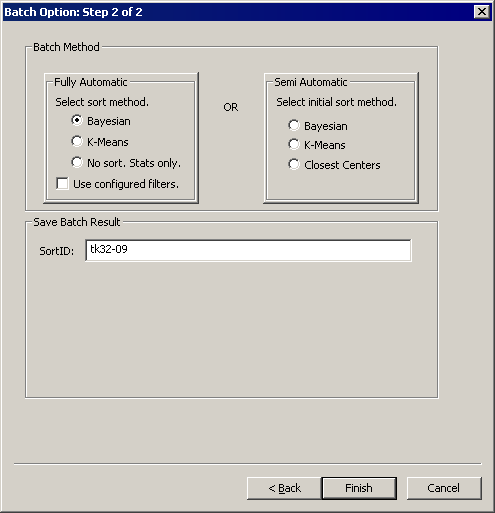
Select your desired automatic sort method and whether or not to include the currently configured tank filters (see Tank Filtering for more information) for the specified data sets, or select a semi-automatic batch processing mode.
-
If you select a fully automatic method all specified data sets will be processed using the selected algorithm and parameter values set in the Settings panel. Progress during batch processing will be shown in the status bar at the lower left of the workspace.
-
If you select No sort. Stats only, the specified data sets will have calculated statistics saved to the specified SortID. This is useful if you are using manual sorting or a custom sorting algorithm.
-
If you select a semi-automatic sorting method, each data set will be processed sequentially:
-
The first data set is displayed.
-
When ready to run the selected algorithm, click the
 Run
Selected Algorithm button or press F5.
Run
Selected Algorithm button or press F5. -
The data set will be sorted using the selected algorithm and parameter values specified in the Settings panel. After the sort is completed, the results are displayed and you have an opportunity to make changes prior to the next sort.
-
Once you are satisfied with the sort results, click the
 Continue Supervised Batch button, or press F4, to save
the results and advance to the next successive set.
Continue Supervised Batch button, or press F4, to save
the results and advance to the next successive set.
-
-
-
Enter a name for the SortID to be created after the batch process completes.
-
Click Finish.
SuperBlock: Concatenating Data from Multiple Sets
OpenSorter has the ability to concatenate data from different data sets within a tank and then sort based on the concatenated data set (SuperBlock). This feature is useful when multiple blocks were recorded without changing electrode position, allowing the user to combine electrode channels across blocks.
To create a SuperBlock, perform the following steps:
-
To open the Build Super Block dialog, click the Build SuperBlock option in the Sort menu or click the
 Create Superblock button.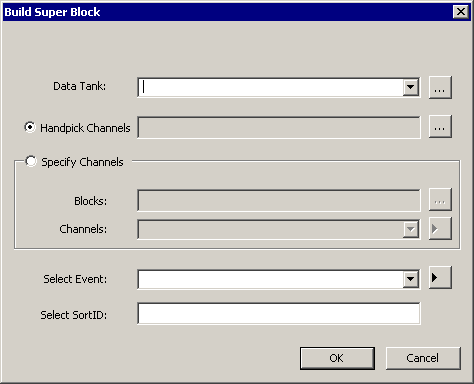
-
To select the data tank, click the drop-down box or use the ellipsis (...) next to the Data Tank field to select the desired tank using the Find Tank dialog.
By default the Find Tank dialog displays registered tanks in the current tank format. The shortcut menu (right-click) provides tools to locate additional tanks.
Show Legacy Tanks: view legacy tanks (tanks generated in versions prior to v2.0).
Browse for Tank: locate unregistered tanks in the current tank format.
Find Legacy Tanks: locate unregistered legacy tanks.
Once the tank is selected, the tank name appears in the Data Tank field.
-
Next you must select the data sets to concatenate.
-
To specify differing channels within each block to be processed (for example, channel 2 of block 3 and channel 4 of block 5), choose the Handpick Channels option.
-
Click the ellipsis (...) next to the Handpick Channels option.
-
In the Pick Data Set dialog, expand the desired blocks by double-clicking the desired blocks and select desired channels using standard Windows keyboard methods (click, Shift + click to select contiguous blocks or Ctrl + click to select non-contiguous blocks).
-
Click Done.
-
-
To specify a fixed group of channels to be processed all within a selected block (for example, channel 2 of blocks 3, 4, and 5), choose the Specify Channels option.
-
Click the Specify Channels option.
-
Click the ellipsis (...) next to the Blocks field. In the Pick Data Set dialog, select the desired blocks using standard Windows keyboard methods.
-
Click Done.
-
In the Channels box, type the desired channel numbers separated by a comma or semicolon or by a dash to select a range. Leaving this field blank will assume all channels are intended to be used.
-
-
To process all channels in all blocks selected, choose either option and select only at the block level. Do not pick or specify any channels.
-
-
In the Select Event box, leave the field blank to sort all events or type the four character event code to select a specific event. You can also enter a SortID for a previously created SuperBlock to view that SuperBlock again.
Note
The Select SortID box is currently not supported.
-
Click OK.
Progress toward creating the SuperBlock is displayed in the progress bar on the right side of the status bar. In the OpenSorter tabbed window, all spikes contained in the SuperBlock are displayed and ready for sorting. In the timeline pane, vertical white lines are displayed between each data set.
During this process, data is concatenated for sorting purposes, but no new data blocks are formed. Instead, after you sort the SuperBlock and wish to save the results, the resulting SortID is saved back into the original blocks from which the data was gathered.