This section includes a detailed reference for the OpenSorter menus and toolbars.
The OpenSorter menus provide access to a variety of tasks. However, most common tasks will be performed using the
OpenSorter toolbars.
Use standard Windows methods to reposition or customize the OpenSorter menu bar.
| New Tabbed Window |
Open a new tabbed window |
| Open |
Not yet implemented |
| Close |
Close the active tabbed window |
| Save |
Launch the Save Sort Results dialog |
| Tree Navigation |
Launch the Preference dialog box, allowing the user to specify whether or not to save the active sort when the user navigates away |
| Save Current Config |
Save the current algorithm and settings configuration |
| Load Config |
Load a previously saved algorithm and settings configuration |
| Exit |
Close OpenSorter |
| Undo |
Undo the last sorting action; supports multiple undo (up to 16 steps) |
| Redo |
Redo the previously undone action; supports multiple redo (up to 16 steps) |
| Reset Sort Codes |
Sets all sort codes in the currently displayed dataset to unsorted |
| Remove Set-Level Outliers |
Calculates dataset-level outliers using the standard deviations value set in the Settings panel and applies the outlier sort code to the outlier waveforms |
| Remove Cluster Outliers |
Calculates cluster-level outliers using the standard deviations value set in the Settings panel and applies the outlier sort code to the outlier events |
| Manually Pick Spikes |
Toggles the pointer to the manual pick spikes tool allowing users to cut clusters visually in any of the tabbed window panes |
| Select Nearest Trace |
Toggles the pointer to the select nearest trace tool |
| Toolbars |
Toggle toolbars in/out of view or customize toolbars |
| Status bar |
Toggle status bar in/out of view |
| Tanks |
Toggle Tanks panel in/out of view |
| Tank Filter |
Toggle Tank Filtering panel in/out of view |
| Settings |
Toggle Settings panel in/out of view |
| Output |
Toggle Output panel in/out of view |
| Sort State |
Toggle Sort State panel in/out of view |
| Select Active Algorithm |
Sets the active algorithm, the algorithm that will be applied the next time the Run Selected Algorithm command is run. Also updates the option button display on the Sort toolbar. |
| Run Active Algorithm |
Runs the algorithm selected using the Select Active Algorithm command or using the option buttons on the Sort toolbar. |
| Abort Sorting Process |
Aborts the sorting process. This often results in all sort codes being cleared. To return to the previous sort results use the Undo Last Action button. |
| Manually Pick Spikes |
Toggles the pointer to the manual pick spikes tool allowing users to cut clusters visually in any of the tabbed window panes |
| Choose Cluster Centers |
Toggles the pointer to the choose cluster centers/mark centers tool |
| Select Nearest Trace |
Toggles the pointer to the select nearest trace tool |
| Save to SortID |
Opens the Save Sort Results dialog, allowing you to save the current sort results to a new SortID or any existing SortID |
| Build SuperBlock |
Opens the Build Super Block dialog, allowing you to concatenate data from different sets within a tank |
| Batch Processing |
From the submenu you can:
Set-up Batch Processing: launches the Batch Options dialog, allowing you to select datasets and configure batch processing
Edit Next Set in Batch: advances to the next dataset during semi-automatic processing |
| Display Saved Statistics |
Opens the Statistics Data Set dialog where saved statistics for multiple data sets can be selected for comparison or exported |
| Update Display |
Refresh the tabbed window display |
| Select Nearest Trace |
Toggles the pointer to the select nearest trace tool |
| Mouse Mode Operations |
From the submenu, toggle the pointer to one of various mouse tools |
| Timeline |
From the submenu, access commands to browse, expand, or contract the time span in the timeline pane of the tabbed window |
| 3D View |
From the submenu, access tools for viewing the data in the feature space pane |
| New Tabbed Window |
Open a new tabbed window |
| Cascade |
Cascade open tabbed windows, allowing the title bar for all windows to be in view |
| Tile |
Tiles open tabbed windows, allowing all windows to be in view |
| About |
Display version number information |
| Help |
Launches OpenSorter User Guide |
Most common tasks will be performed using the OpenSorter toolbars. Use standard Windows methods to reposition or
customize OpenSorter toolbars.
To toggle the toolbar on or off, use the Toolbars submenu on the View menu.
The Standard toolbar provides access to the most common OpenSorter commands.
 |
Open New Tab |
 |
Repaint Display (Refresh Data Set) |
 |
Create SuperBlock (Concatenate Data Set from Different Blocks) |
 |
Batch Sort (Batch Sort Multiple Data Sets) |
 |
Continue Supervised Batch (Process Next Batching Data Set) |
 |
Calculate Set Level Outliers |
 |
Calculate Cluster Level Outliers |
 |
Display Saved Statistics |
 |
Calculate Statistics for Current Data Set |
The Sort toolbar is used to determine which sort algorithm is applied when a sort is performed using the
 Run Selected Algorithm button on the Standard toolbar.
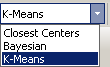 |
Select Sort Algorithm |
|
Run Selected Algorithm |
 |
Abort Current Operation |
 |
Undo the Last Action |
 |
Redo the Previous Action |
 |
Clear Sort Codes |
 |
Save to SortID |
The Mouse toolbar controls the function of the pointer when working in the tabbed window. Each time you click a
button on the Mouse toolbar, the function of the pointer changes. You can right-click any area of the tabbed
window to return the pointer to its default state, Rotate 3D Display.
 |
Default Pointer |
 |
Mark Centers for Sort |
 |
Highlight Nearest Trace |
 |
Manual Pick Cluster |
 |
Pan |
 |
Zoom |
 |
Rotate 3D Display |
 |
Restore Default Display |
The Rotate toolbar provides tools for viewing the data in the feature space pane.
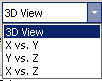 |
View Angle (for feature space) |
 |
Rotate X Axis by 5 Degrees |
 |
Rotate Y Axis by 5 Degrees |
 |
Rotate Z Axis by 5 Degrees |
 |
Auto Rotate |
 |
Stop Auto Rotate |
The Navigation toolbar provides a means of browsing, expanding, or contracting the time span of the timeline pane.
Duration refers to the visible width of the timeline.
 |
Move to Beginning of the Timeline |
 |
Shift Timeline Left 1x |
 |
Move Timeline Left 1/10th of Duration |
 |
Move Timeline Right 1/10th of Duration |
 |
Move Timeline Right 1x |
 |
Move to End of the Timeline |
 |
Expand Spike Waveforms (zooms in the timeline display by a factor of 2) |
 |
Shrink Spike Waveforms (zooms out the timeline display by a factor of 1/2) |
 |
Zoom Selected Timeline Region |
Keyboard Shortcuts
The keyboard shortcuts below allow quick keyboard access to the mouse tools for viewing and working with data.
| Ctrl + Shift + Click and Drag |
Manually Sort Waveforms |
| Alt + Click and Drag |
Pan |
| Shift + Click and Drag |
Zoom |
| Ctrl + Click |
Pick Trace |
| Right Click |
Restore Default Mouse Function or Display Context Sensitive Shortcut Menus |
| F5 |
Run Active Algorithm |
| F4 |
Proceed To Next Data Set during Batch Processing |