Workspace Basics
About the OpenBrowser Workspace
OpenBrowser includes a data viewing area and two collapsible sub-windows. A menu
bar and toolbar are provided for easy access to commands.
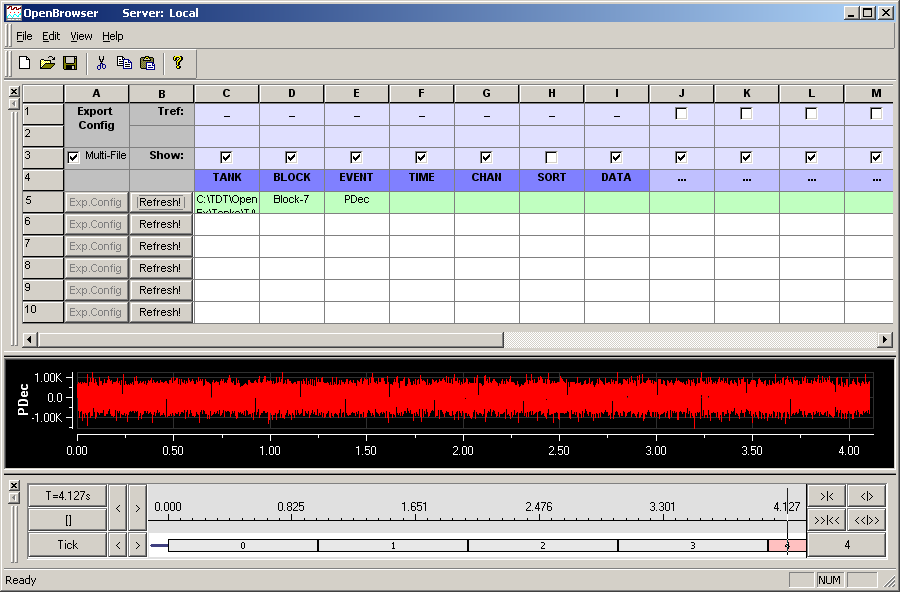 The Data Selection Table window is at the top, the Data View area in the middle,
and the Time Line window at the bottom.
The Data Selection Table window is at the top, the Data View area in the middle,
and the Time Line window at the bottom.
Data Selection Table Window
The Data Selection Table window allows users to select events from a data tank.
Data is selected and arranged in rows based on the tank, block, event, and other
associated variables. The Data Selection Table window also allows users to design
a custom configuration file that contains all the export variables and information
for a data row.
Data View Area
The data view area displays data selected in the Data Selection Table window. Data
can be displayed in either a scroll plot or table view. The scroll plot view displays
the waveform data and event times for time reference epochs and can be expanded and
contracted using the Time Line window. The table view displays data in a row and
column format. In this view, data and time stamp information can be copied and pasted
into other applications such as Microsoft Excel. A shortcut menu with Cut, Copy, and
Paste commands is also available in this view.
Time Line Window
The Time Line window displays the block's timeline and allows users to move through
the selected data using the timeline.
| Tank Server |
Opens the Select Server window. |
| New |
Opens a new OpenBrowser file. |
| Open |
Opens the Open dialog box so that an existing OpenBrowser file can be opened. |
| Save |
Saves the current OpenBrowser file with the current name. If the file has not previously been saved, the Save As dialog box opens so that the file can be named. |
| Save As |
Opens the Save As dialog box so that the OpenBrowser file can be saved with a new name. |
| Export Current Row |
Exports the currently selected row. |
| Export Selected Rows |
Exports multiple selected rows. Several adjacent rows can be selected by holding down the SHIFT key and clicking the row numbers. Non-adjacent rows can be selected by holding down the CTRL key and clicking the row numbers. |
| Export All Rows |
Exports all rows containing data. |
| Recently Used Files |
The fourth section of the File menu lists recently used files. Clicking a file name opens the file. |
| Exit |
Closes the OpenBrowser application. |
| Undo |
Reverses the last action taken in the Data Selection Table window. |
| Cut |
Cuts the selected row(s) in the Data Selection Table or cuts selected data from the Data Table view. |
| Copy |
Copies the selected row(s) in the Data Selection Table or copies selected data in the Data Table view. |
| Paste |
Pastes the most recently cut or copied row(s) in the Data Selection Table or pastes data in the Data Table view. |
| Delete Rows |
Deletes the selected row(s) in the Data Selection Table. If no row is selected the last row is deleted. |
| Insert Rows |
Inserts a row above the currently selected row in the Data Selection Table. If no row is selected the row is added to the bottom of the table. |
| Toolbar |
Toggles the toolbar between displayed and hidden. |
| Status Bar |
Toggles the status bar between displayed and hidden. |
| Data View Table |
Toggles the Data View window between Table view and Scroll Plot view. |
| Data Selection Table |
Toggles the Data Selection Table window between displayed and hidden. |
| Time Line |
Toggles the Time Line window between displayed and hidden. |
| About OpenBrowser |
Displays version and copyright information for OpenBrowser. |