Using ActiveX with Common Programming Languages
Each programming language implements ActiveX controls differently. This section provides a brief explanation of programming using ActiveX controls with:
MATLAB
Python
This manual also includes examples that demonstrate how to implement the TDT ActiveX controllers for MATLAB and Python.
MATLAB ActiveX
MATLAB versions 5.3 and above support ActiveX controls. The primary MATLAB method call for using ActiveX controls is:
actxserver()
This method adds an ActiveX control to your program. Once the ActiveX control has been instantiated all of its ActiveX methods can be used.
Interfacing with TDT Devices through ActiveX Controls
The following three calls will get a circuit running on the processor device:
Connect(device type) - establishes a connection with the processor device
LoadCOF - loads a Control Object file
Run - runs the circuit
Included with the ActiveX help are several examples of programs using the ActiveX controls with the RP2. Other TDT processor devices may be used with these example files by modifying the example code to connect to the specified device. We have also included the circuit Control Object File (*.rcx). The examples include programs written for versions newer than MATLAB 6.0, specifically R13 and R14. If you are using an older version of MATLAB such as R12, please review the example files that were designed for older releases of MATLAB.
RP Example Programs
Circuit Loader
Demonstrates the basic ActiveX methods that are part of any program. The program starts an ActiveX control, connects to an RP2, and loads an *.rco or *.rcx file and runs it.
Methods used: ConnectRP2, ClearCOF, LoadCOF, Run, GetStatus
Device Checker
Checks the components in a circuit that has been loaded and is running.
Methods used: GetCycUse, GetNumOf, GetNameOf, GetTagType, GetTagSize
Band-limited Noise
Uses parameter tags to control the frequency and intensity of filtered noise.
Methods used: SetTagVal, GetTagVal
Continuous Play
Plays a continuous set of tones generated in MATLAB.
Methods used: WriteTagV, SoftTrg, GetTagVal
Continuous Acquire
Stores one channel of stream data to an f32 file.
Methods used: ReadTagV, SoftTrg, GetTagVal
FIR Filtered Noise
Uses a noise component on the DSP to generate and filter it through an FIR.
Methods used: SendSrcFile, SendParTable
Two Channel Continuous Acquire
Stores two channels of streaming data to a f32 file using ReadTagVEX.
Methods used: ReadTagVEX, SoftTrg, GetTagVal
Two Channel Continuous Play
Plays two sets of tones out of two DACs.
Methods used: WriteTagVEX
Using ActiveX Controls With More Than One TDT Module
When using ActiveX controls with multiple processor devices, create a separate ActiveX control for each module. For example, in the example code below the user can add code to talk to a different processor device by creating a second control with a different MATLAB handle (i.e. RP2_2 instead of RP2_1):
% TDT Module 1
RP2_1 = actxserver('RPco.x')
RP2_1.ConnectRP2('GB', 1) % This connects to RP2 module #1 via the Optical Gigabit interface
% TDT Module 2
RP2_2 = actxserver('RPco.x')
RP2_2.ConnectRP2('GB', 2) % This connects to RP2 module #2 via the Optical Gigabit interface
Using Older Versions of MATLAB
If using versions of MATLAB greater than release 12, the invoke() method is not required. If using MATLAB R12 or prior releases, the invoke() method is required. Examples of how the ConnectRP2 method should be called in older MATLAB releases are shown below.
invoke()
Calls the ActiveX methods used with a control object file (*.rco or *.rcx).
invoke(RP, 'ConnectRP2', 'GB', 1) % MATLAB Prior to R13
Important
MATLAB 6.0 (R12) requires that all variables that are to be used in numerical operations be cast as Doubles. These operations include: +,-,.*,./,.^,: and others. Compare statements such as <,>,== do not need the variable to be of type double. Changing your MATLAB code to work with MATLAB 6.0 (R12) requires that you cast the variables as DOUBLE. MATLAB 7 (R14) supports math on integer and single-precision data.
For example:
freq=invoke(RPx,'GetTagVal','freq')
should be changed to
freq=double(invoke(RPx,'GetTagVal','freq')) % MATLAB 6.0 (R12)
Function Headers
All functions behave exactly the same in as they do in other programming languages. Users should refer to the RpcoX, PA5x, and ZBUSx sections of the ActiveX Help for details on how each function works. To determine the data types for each function and parameter, refer to the list below.
RpcoX
function GetError: WideString;
function Connect(Interface_: Integer; DevNum: Integer): Integer;
function SetTagVal(const Name: WideString; Val: Single): Integer;
function LoadCOF(const FileName: WideString): Integer;
function Run: Integer;
function Halt: Integer;
function SoftTrg(Trg_Bitn: Integer): Integer;
function GetTagVal(const Name: WideString): Single;
function ReadTag(const Name: WideString; var pBuf: Single; nOS: Integer; nWords: Integer): Integer;
function WriteTag(const Name: WideString; var pBuf: Single; nOS: Integer; nWords: Integer): Integer;
function SendParTable(const Name: WideString; IndexID: Single): Integer;
function SendSrcFile(const Name: WideString; SeekOS: Integer; nWords: Integer): Integer;
function ReadTagV(const Name: WideString; nOS: Integer; nWords: Integer): OleVariant;
function WriteTagV(const Name: WideString; nOS: Integer; Buf: OleVariant): Integer;
function GetTagSize(const Name: WideString): Integer;
function GetTagType(const Name: WideString): Integer;
function GetNumOf(const ObjTypeName: WideString): Integer;
function GetNameOf(const ObjTypeName: WideString; Index: Integer): WideString;
function ReadCOF(const FileName: WideString): Integer;
function ConnectRP2(const IntName: WideString; DevNum: Integer): Integer;
function ConnectRL2(const IntName: WideString; DevNum: Integer): Integer;
function ConnectRA16(const IntName: WideString; DevNum: Integer): Integer;
function ReadTagVEX(const Name: WideString; nOS: Integer; nWords: Integer; const SrcType: WideString; const DstType: WideString; nChans: Integer): OleVariant;
function GetStatus: Integer;
function GetCycUse: Integer;
function ClearCOF: Integer;
function WriteTagVEX(const Name: WideString; nOS: Integer; const DstType: WideString; Buf: OleVariant): Integer;
function ZeroTag(const Name: WideString): Integer;
function GetSFreq: Single;
function ConnectRV8(const IntName: WideString; DevNum: Integer): Integer;
function GetDevCfg(Addr: Integer; Width32: Integer): Integer;
function SetDevCfg(Addr: Integer; Val: Integer; Width32: Integer): Integer;
function LoadCOFsf(const FileName: WideString; SampFreq: Single): Integer;
ZbusX
function Connect(Interface_: Integer): Integer;
function GetDeviceAddr(DevType: Integer; DevNum: Integer): Integer;
function GetDeviceVersion(DevType: Integer; DevNum: Integer): Integer;
function HardwareReset(RackNum: Integer): Integer;
function FlushIO(RackNum: Integer): Integer;
function zBusTrigA(RackNum: Integer; zTrgMode: Integer; Delay: Integer): Integer;
function zBusTrigB(RackNum: Integer; zTrgMode: Integer; Delay: Integer): Integer;
function zBusSync(RackMask: Integer): Integer;
function GetError: WideString;
function GetDeviceAt(RackNum: Integer; PosNum: Integer; var DevID: Integer; var DevNum: Integer): WideString;
function ConnectZBUS(const IntName: WideString): Integer;
PA5x
function Connect(Interface_: Integer; DevNum: Integer): WordBool;
function SetAtten(AttVal: Single): WordBool;
function GetAtten: Single;
function Reset: WordBool;
function SetUser(ParCode: Integer; Val: Single): WordBool;
function GetError: WideString;
function Display(const Text: WideString; Position: Integer): WordBool;
function ConnectPA5(const IntName: WideString; DevNum: Integer): Integer;
Working with Control Object Files (*.rco and *.rcx)
The Control Object File contains an object-oriented description of the circuit. When the circuit is loaded and run the Control Object File provides an interface between the processor device and the program using the Control Object (*.rco or *.rcx) File.
Once you have generated the circuit you can test it by running it within RPvdsEx. To check for problems Compile, Load, and Run the circuit before saving it as a Control Object File.
Note: The default preference for RPvdsEx is to embed the Control Object into an *.rcx file. RPvdsEx files that are compiled in this embedded format generate only one file (*.rcx) that has both the Control Object and Circuit Graphic file information.
Legacy formats use separate files for the Control Object and Circuit Graphic information. RPvdsEx preferences can be set to generate both an *.rpx and *.rco file for use with legacy formats.
Creating an RCO for Legacy Formats
To change the preferences in RPvdsEx for Legacy formats:
Click Preferences on the Edit menu.
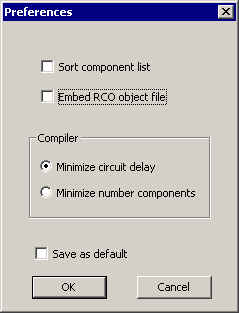
Click to clear the Embed RCO object file checkbox.
Click OK.
To save the file as a Control Object File:
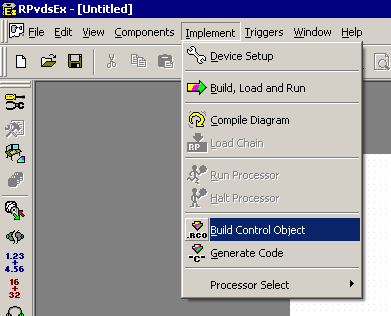
Once the preferences above have been set, Click Build Control Object on the Implement menu or click the Build Control Object toolbar button.
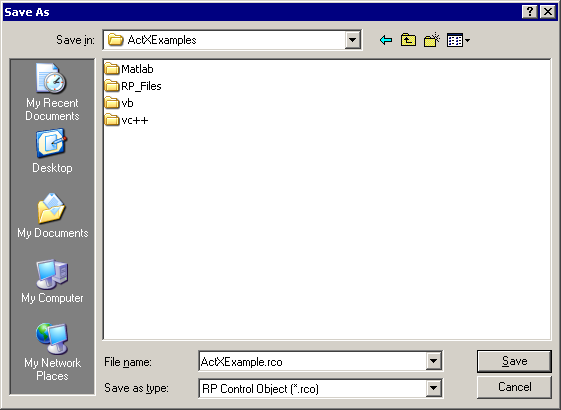
In the Save As dialog box, enter a file name then click Save.
The saved *.rco file can be used by any program compatible with TDT's ActiveX controls (e.g. MATLAB).